Sunday, July 21, 2019

Build Test Plan in Jmeter Apache 2.11

To build Test Plan in Jmeter Apache. We need several step to configuring the process.
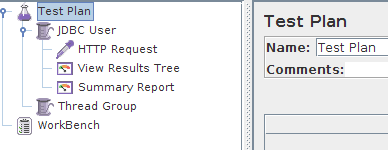
  1. Right click in Test Plan > Add > Thread Group
  2. Customize the Thread Group with your desire configurations like number of threads(User),The Ramp-Up Period, and loop count.
     - Number of threads : Number of   Users
     - The Ramp-Up Period : This property tells JMeter how long to delay between starting each user. For example, if you enter a Ramp-Up Period of 5 seconds, JMeter will finish starting all of your users by the end of the 5 seconds. So, if we have 5 users and a 5 second Ramp-Up Period, then the delay between starting users would be 1 second (5 users / 5 seconds = 1 user per second). If you set the value to 0, then JMeter will immediately start all of your users.
     - Loop Count :
    This property tells JMeter how many times to repeat your test
  3. Right click in Thread Group created before and go to > Add > Config Element > HTTP Request
    • Name -- the name of this HTTP request. The name should be descriptive; remember that it is common to have multiple HTTP Request elements in a thread group.
    • Server Name or IP -- the server name or the IP address of the machine running the application being tested.
    • Port Number -- the port number used by the application. Normally, a Web application runs on port 80.
    • Protocol -- the protocol used, either HTTP or HTTPS.
    • Method -- the request method, either GET or POST.
    • Path -- the path to the resource that will handle this request.
    • Parameters -- the list of parameters sent with this request. Use the Add and Delete buttons to add and remove parameters.
    • Send a file with a request -- simulate a file upload to the Web application.
    • Retrieve all images and Java Applets -- download embedded content.
  4. Right click in Thread Group created before and go to > Add > Listener > View Result Tree.
  5. Right click in Thread Group created before and go to > Add > Listener > Summary Report.
    Explanations:

    Label: Recorded HTTP requests.

    Samples: Samples denote to the number of http request ran for given thread.

    Average:  Average is the average response time for that particular http request. This response time is in millisecond.

    Min: Min denotes to the minimum response time taken by the http request.

    Max: Max denotes to the maximum response time taken by the http request.

    Std.Deviation: This shows how many exceptional cases were found which were deviating from the average value of the receiving time.   The lesser this value more consistent the time pattern is assumed.

    Error %: This denotes the error percentage in samples during run. This error can be of 404(file not found), or may be exception or any kind of error during test run will be shown in Error %. In the above image the error % is zero, because all the requests ran successfully.
Share:

Saturday, July 20, 2019

Install Jmeter

Apache JMeter is a 100% pure Java desktop application designed to load test client/server software (such as a web application ). It may be used to test performance both on static and dynamic resources such as static files, Java Servlets, CGI scripts, Java objects, databases , FTP servers , and more. JMeter can be used to simulate a heavy load on a server, network or object to test its strength or to analyze overall performance under different load types.

Jmeter can do stress test to client/server application such as simultaneously massive user login and process. Jmeter works in protocol level and using Java desktop applications.

 Start Jmeter Installation :
  • Go to terminal and check your Java version by typing "java -version".
    It will give result something like this depending on your Java version.
        java version "1.7.0_60"
       Java(TM) SE Runtime Environment (build 1.7.0_60-b19)
       Java HotSpot(TM) 64-Bit Server VM (build 24.60-b09, mixed mode)
    If nothing displays, please re-Install Java SE runtime environment
  • Download Jmeter from here, and unpack it.
  • Launch Jmeter.
      -
    If you are using Window, just run the file /bin/jmeter.bat to start JMeter in GUI mode as shown below
Share:

Friday, June 21, 2019

Vagrant: Built Customize Vagrant Box

Built Customize Vagrant Box


We can make customize box from our vagrant existed box. With this, we can change our environment in existing box and customize it according our need.


Scripting

// In your Vagrant Init file directory
vagrant up
// Get in to your vagrant environment
vagrant ssh

/*
 * Do your custumize in here
 * For example. I will remove my existing ruby version from vagrant box and change it to new one
 */

sudo apt-get update -y

sudo apt-get install build-essential zlib1g-dev libssl-dev libreadline-dev \
git-core curl libyaml-dev libcurl4-dev libsqlite3-dev apache2-dev -y

curl --remote-name http://ftp.ruby-lang.org/pub/ruby/1.9/ruby-1.9.3-p194.tar.gz

tar zxf ruby-1.9.3-p194.tar.gz

cd ruby-1.9.3-p194/

./configure

make

sudo make install

// Check if my new ruby version successfully installed
ruby -v

// If succeed quit from vagrant ssh
exit

// Adding your customize box to new box
vagrant package

// Name it
vagrant box add lucid64_with_ruby193 package.box

// Check for your new box
vagrant box list

- lucid32
- lucid64
- lucid64_with_ruby193

// Activate your vagrant 
vagrant init lucid64_with_ruby193


Share:

Tuesday, June 18, 2019

Breakman Rails: How to avoid Mass Assignment Warning

Breakman is static analysis security scanner for Ruby on Rails. It's open source vulnerability scanner specifically designed for Ruby on Rails applications. It statically analyzes Rails application code to find security issues at any stage of development.

I will share some trick to avoid Breakman Mass Assignment medium settings warning.
  1. Pay attention to your model relationship. My suggestion always use Nested Attributes .
  2. If necessary used attr_protected to relationship variable key in your model.
Below is some of example case I've solved:
  • Example Case 1 "Without Relationship" :
         Set relationship variable in attr_protected to avoid Breakman warning.
      attr_accessible :name, :description
      attr_protected : user_id
         Do this saving method:
            create :
         data_list = {:name => name, :description => description}
        saving_create = self.new(data_list)
        saving_create.user_id = user_id
        saving_create.save
             update :
        data_list = {:name => name, :description => description}
        user_data = self.find_by_id(1)
        user_data.attributes = data_list 
        user_data.user_id = user_id
        user_data.save

  • Example Case 2 "With Relationship" :
      attr_accessible :name, :description
      attr_protected : user_id

      has_one :category
      has_many :products

      accepted_nested_attributes :category, :products

            create :
        products = []
        data_list = {:name => name, :description => description}
        saving_create = self.new(data_list)
        saving_create.user_id = user_id
        all_data.each do |d|
          saving_process = saving_create.products.build
          saving_process.product_id = d[:product_id] 
          saving_process.product_name = d[:product_name]
        end
        saving_create.save
      update :
        products.each do |p|
        data_list = {:name => p.name, :description => p.description}
         update_process = self.find_by_id(p.user_id)
         update_process.attributes = data_list
         update_process.product_id = p.id
         update_process.product_name = p.id
         unless update_process.save
            raise ActiveRecord::Rollback 

         end
        end
      

Share:

Friday, June 14, 2019

Laravel 4 Scheduller with dispatcher


Dispatcher is a Laravel artisan command scheduling tool used to schedule artisan commands within your project so you don't need to touch your crontab when deploying.

For Futher Information go to this link Dispatcher.


  • Do you hate to touch crontab to add scheduller in laravel?
  • Do you hate with all crontab configuration when add scheduller in different servers?
Congratulations,  Laravel has package to handle this problem using Dispatcher. Everthing become simple and easy with this package. Doubt? Here we go!

Tool Kit

  • PHP 5.3+ or HHVM
  • Laravel 4

Configurations

In your application add this to your "require" :{} composer.json

    "indatus/dispatcher": "1.4.*@dev"

remember to do composer update.
In your app/config/app.php providers array add this line:

'Indatus\Dispatcher\ServiceProvider',

Usage

scheduled
  scheduled:make              Create a new scheduled artisan command
  scheduled:run               Run scheduled commands
  scheduled:summary           View a summary of all scheduled artisan commands

Build scheduled command

php artisan scheduled:make yourCommands

Register scheduled command

In Your app/start/artisan.php add this line depend on Your Command :


Artisan::add(new yourCommands);

Scripting

Go to your command app/command/yourCommands and change 

// my artisan command will be php artisan cron:mycommands
protected $name = 'cron:yourCommands';

// Configure this functions to change schedule time
public function schedule(Schedulable $scheduler)
{
  // Change this function to change time
  return $scheduler->daily();
}

This is Scheduler Changes time function example list:

//every day at 4:17am
return $scheduler->daily()->hours(4)->minutes(17);

//every Monday/Friday at 8:30am
return $scheduler->daysOfTheWeek([
                Scheduler::MONDAY,
                Scheduler::FRIDAY
            ])->hours(8)->minutes(30);

// Using Raw Commands
//every other day at 1:59am, 13:59pm and 23:59pm
return $scheduler->setSchedule(59, [1,13,23], '*/2', '*', '*');

// Every minutes
return $scheduler->everyMinutes();

// Every 20 minutes
return $scheduler->everyMinutes(10);

// Every hours
return $scheduler->everyHours();

Cron Setup

In console add

crontab -e
* * * * * php {{ path to your app}}/artisan scheduled:run 1>> /dev/null 2>&1

Debugging

If your cron not running check this

// Via console, check your mcrypt
php -i | mcrypt.

// Via console
php artisan scheduled:run --debug 
backup:avatars: No schedules were due
     command:name: No schedules were due
     myTestCommand:name: No schedules were due
     cache:clean: /usr/bin/env php /Users/myUser/myApp/artisan cache:clean > /dev/null &
     mail:subscribers: /usr/bin/env php /Users/myUser/myApp/artisan mail:subscribers > /dev/null &

// Via Console
php artisan scheduled:summary
//It works if output something like this:
+----------------+------------------+-----------+--------+------+--------------+-------+-------------+--------+
| Environment(s) | Name             | Args/Opts | Minute | Hour | Day of Month | Month | Day of Week | Run as |
+----------------+------------------+-----------+--------+------+--------------+-------+-------------+--------+
| *              | schedule:test    |           | */5    | *    | *            | *     | *           |        |
+----------------+------------------+-----------+--------+------+--------------+-------+-------------+--------+

Share:

Tuesday, May 28, 2019

Laravel 4 Queue with Beanstalk and Supervisor


Queue  is great tools in laravel for implementing delayed job. Queue allowing system to put task in background so it can become faster and make users skip waiting until tasks is finished.
Queue can be implemented to handle big process such as generating reports, image processing, sending email, or even heavy CRUD process.

Tool Kit

Configuration

Installing Queue

In your application add this to your "require" :{} composer.json

    "pda/pheanstalk": "2.0.*"

Scripting

You can create new class or use controller/model/any class to execute function with Queue. Below is function in controller class executed by Queue.

<?php

class ReportsController extends \BaseController {
  function fire($job,$data){
    //Function Process
  }
}

To execute this method with queue use this command

Queue::push('ReportsController', $data);

Other alternative is to execute function without fire method

<?php

class ReportsController extends \BaseController {
  function generateReport($job,$data){
    //Function Process
  }
}

To execute this method with queue use this command

Queue::push('ReportsController@generateReport', $data);

Queue::push() command can be use in Route, Controller, or even Command.

Running Queue

To running Queue we need Beanstalk as a worker. To activate beanstalk running this command in console

  // To fire last job
  php artisan queue:work

  // To fire running job and listen it
  php artisan queue:listen

  // add listener with flag (you can choose or implement all of this)
  php artisan queue:work --timeout=0 --queue="default" --delay=0 --memory=128 --sleep=3 --tries=0

Install and Configure Beanstalk

Install Beanstalk

sudo apt-get update
// Install in Debian or ubuntu
sudo apt-get install beanstalkd

Configure Beanstalk

sudo nano /etc/default/beanstalkd

// Add or uncomment this line
START yes

Start Beanstalk
sudo service beanstalkd start

Configure Beanstalk in Our Laravel App

Set default queue in app to Beanstalk. Go to app/config/queue.php

// Change This
'default' => 'beanstalkd',

// This is default beanstalk configurations
'connections' => array(

    'beanstalkd' => array(
        'driver' => 'beanstalkd',
        'host'   => 'localhost', 
        'queue'  => 'default',
        'ttr'    => 60,
    ),

),

Supervisor

We use php artisan queue:work or php artisan queue:work as listener, but we know that impossible for us to running this command every time we push job to Queue or when we start servers.

To overcome this we use Supervisor to listen all of active worker. Supervisor will listen all of our queue:work --daemon and restart it if failed.

Install Supervisor


// Install Supervisor in Debian or ubuntu
sudo apt-get install supervisor

// Adding configurations
sudo nano /etc/supervisor/conf.d/reportqueue.conf

[program:reportqueue]
command=php artisan queue:work --daemon --env=your_environment
directory=/path/to/MYAPP
stdout_logfile=/path/to/MYAPP/app/storage/logs/myqueue_supervisord.log
redirect_stderr=true
autostart=true
autorestart=true

Add Configuration to Supervisor


sudo supervisorctl
reread # Tell supervisord to check for new items in /etc/supervisor/conf.d/
add reportqueue       # Add reportqueue process to Supervisord
start reportqueue     # Let's Rock

Check Supervisor


// In Console
ps aux | grep php

# You should see some output similarish this:
php artisan queue:work --daemon --env=your_environment
sh -c php artisan queue:work  --queue="default" --delay=0 --memory=128 --sleep --env=your_environment
php artisan queue:work --queue=default --delay=0 --memory=128 --sleep --env=your_environment
Share:

Sunday, April 21, 2019

Setting Vagrant with VHOST


1. Install Vagrant in this article.

2. Log to your Vagrant from directory projects with Vagrantfile.
  •  vagrant ssh
3. From your Vagrant server type: 
  • sudo nano /etc/apache2/apache2.conf
4. Add this text in apache2.conf

<Directory /home/vagrant/public_html/>
        Options Indexes FollowSymLinks
        AllowOverride All
        Require all granted
</Directory>

Directory /home/vagrant/public_html/ : I put my vagrant directory sync in this path. If you use /var/www/ you can skip this step.

5. From your Vagrant server go to: 
  • cd /etc/apache2/sites-available/
6. Create vhost file for example: sample.conf

7. In sample.conf create this configuration:

<VirtualHost *:80>
        ServerName sample.notcom

        ServerAdmin webmaster@localhost
        DocumentRoot /home/vagrant/public_html/php/sample

        ErrorLog ${APACHE_LOG_DIR}/error-sample.log
        CustomLog ${APACHE_LOG_DIR}/access-sample.log combined
</VirtualHost>

ServerName: Use this to access app from browser.
DocumentRoot: path to your sync projects registered in Vagrantfile
ErrorLog and CustomLog: Log Apache2

8. Register sample.conf to sites-enabled
  • sudo a2ensite sample.conf

9. Restart your apache
  • sudo service apache2 restart
10. Access your app using:
  • sample.notcom
  • IP registered in Vagrantfile. config.vm.network "private_network", ip: "192.168.33.10"
  • If, it's still not works use registered PORT in Vagrantfile: 192.168.33.10:8064
11. Remember that you need to install some PHP extensions, PHPMYADMIN, composer, etc in your Vagrant server environment.
Share: