Showing posts with label Ubuntu. Show all posts

Friday, December 20, 2019

Instal RVM on Linux Ubuntu 64 Bit


RVM is a command-line tool which allows you to easily install, manage, and work with multiple ruby environments from interpreters to sets of gems. To install Ubuntu in RVM

1. Check Apache and Mysql existed in your machine.
  •  Type http://localhost or http://127.0.0.1 on your browser to check apache running.
  • Check /var/www/ directory.
  • In /var/www/index.html type <?php phpinfo(); ?> , then type http://localhost or http://127.0.0.1 on your browser. If apache installation in your machine already correct, your browser will load PHP informations installed on your machine
2.Run on your terminal:
  • bash -s stable < <(curl -s https://raw.github.com/wayneeseguin/rvm/master/binscripts/rvm-installer)
  • source ~/.bash_profile .Note : This command is for reload opened terminal. 
  • rvm requirements. Note : This command is for searching all libs that still needed, and then install the lib.
 3. Install Ruby according to the version we need:     
  • rvm install 1.9.3
4.Install another version of ruby with this method.
5. To view all installed RVM 
  • rvm list
6.To use specifics RVM 
  • rvm use 1.9.3
 7.If there is an error when running rvm use 1.9.3 try open file ~/.bashrc and ~/.bash_profile and then add this script :

[[ -s "$HOME/.rvm/scripts/rvm" ]] && source "$HOME/.rvm/scripts/rvm" # Load RVM into a shell session

8. To use Specifics Gemset

  • rvm use 1.9.3
  • rvm gemset use rails3.2
  • rvm use 1.9.3@rails3.2
9. Set Default RVM
  • rvm use 1.9.3@rails3.2 --default

Share:

Monday, November 18, 2019

Install MongoDB on Ubuntu


MonggoDB provides package that supported officially. This package contains:

  • mongodb-org
  • mongodb-org-server
  • mongodb-org-mongos
  • mongodb-org-shell
  • mongodb-org-tools
Install MonggoDB Package.

  • Import Public Key used by Management System.
    Type on Terminal: sudo apt-key adv --keyserver hkp://keyserver.ubuntu.com:80 --recv 7F0CEB10
  • Create List File.
    echo 'deb http://downloads-distro.mongodb.org/repo/ubuntu-upstart dist 10gen' | sudo tee /etc/apt/sources.list.d/mongodb.list
  • Update Package.
    sudo apt-get update
  • Install MongoDB package
    sudo apt-get install -y mongodb-org


Running MongoDB
  • sudo service mongod start
MongoDB Shell
  • type: mongo
Share:

Saturday, November 2, 2019

Install JRE on Ubuntu


Java Runtime Enviroment also known as JRE is part of Java Development Kit JDK a software development environment for writing Java applications. JRE consist Java Virtual Machine, core classes, and supporting files.
Installing JRE on ubuntu is a little bit different with installation JDK. First, Download the JRE file in here. Remember to download JRE version based on your system version either it's 32bit or 64bit.
After finished downloading your JRE version, we can begin the installation process.

  1. Create new folder in opt directory. In terminal type this command "sudo mkdir -p -v /opt/java/64".
  2. Go to folder containing your JRE download file(example: use"cd Downloads" to move to Download directory from your home directory) and unpack the file by typing "tar xvzf YOUR JRE FILE".
  3. Moved unpacked contents into system folder that you created in step1. Type "sudo mv -v YOUR JRE FILE /opt/java/64".
  4. Inform the system and make the new JRE become your system default.
    - sudo update-alternatives --install "/usr/bin/java" "java" "/opt/java/64/YOUR EXTRACTED JRE FILE/bin/java" 1
    - 
    sudo update-alternatives --set java /opt/java/64/YOUR EXTRACTED JRE FILE/bin/java
  5. Install Firefox plugins. Type "mkdir -v ~/.mozilla/plugins".
  6. Removed IcedTea plugin, if it has been installed. type "sudo apt-get remove icedtea-6-plugin && sudo apt-get remove icedtea-7-plugin".
  7. Remove an older version of the Java plugin. Type "rm -v ~/.mozilla/plugins/libnpjp2.so".
  8. Install the plugin by creating symbolic link. Type "ln -s /opt/java/64/jre1.7.0_60/lib/amd64/libnpjp2.so ~/.mozilla/plugins/".
  9. Close and restart Firefox
  10. Type "about:plugins" in Firefox URL bar. If your installation is correct you will see something like this:

Share:

Sunday, July 21, 2019

Build Test Plan in Jmeter Apache 2.11

To build Test Plan in Jmeter Apache. We need several step to configuring the process.
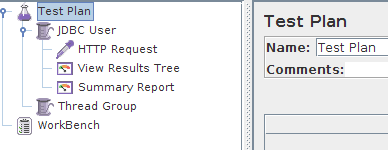
  1. Right click in Test Plan > Add > Thread Group
  2. Customize the Thread Group with your desire configurations like number of threads(User),The Ramp-Up Period, and loop count.
     - Number of threads : Number of   Users
     - The Ramp-Up Period : This property tells JMeter how long to delay between starting each user. For example, if you enter a Ramp-Up Period of 5 seconds, JMeter will finish starting all of your users by the end of the 5 seconds. So, if we have 5 users and a 5 second Ramp-Up Period, then the delay between starting users would be 1 second (5 users / 5 seconds = 1 user per second). If you set the value to 0, then JMeter will immediately start all of your users.
     - Loop Count :
    This property tells JMeter how many times to repeat your test
  3. Right click in Thread Group created before and go to > Add > Config Element > HTTP Request
    • Name -- the name of this HTTP request. The name should be descriptive; remember that it is common to have multiple HTTP Request elements in a thread group.
    • Server Name or IP -- the server name or the IP address of the machine running the application being tested.
    • Port Number -- the port number used by the application. Normally, a Web application runs on port 80.
    • Protocol -- the protocol used, either HTTP or HTTPS.
    • Method -- the request method, either GET or POST.
    • Path -- the path to the resource that will handle this request.
    • Parameters -- the list of parameters sent with this request. Use the Add and Delete buttons to add and remove parameters.
    • Send a file with a request -- simulate a file upload to the Web application.
    • Retrieve all images and Java Applets -- download embedded content.
  4. Right click in Thread Group created before and go to > Add > Listener > View Result Tree.
  5. Right click in Thread Group created before and go to > Add > Listener > Summary Report.
    Explanations:

    Label: Recorded HTTP requests.

    Samples: Samples denote to the number of http request ran for given thread.

    Average:  Average is the average response time for that particular http request. This response time is in millisecond.

    Min: Min denotes to the minimum response time taken by the http request.

    Max: Max denotes to the maximum response time taken by the http request.

    Std.Deviation: This shows how many exceptional cases were found which were deviating from the average value of the receiving time.   The lesser this value more consistent the time pattern is assumed.

    Error %: This denotes the error percentage in samples during run. This error can be of 404(file not found), or may be exception or any kind of error during test run will be shown in Error %. In the above image the error % is zero, because all the requests ran successfully.
Share:

Saturday, July 20, 2019

Install Jmeter

Apache JMeter is a 100% pure Java desktop application designed to load test client/server software (such as a web application ). It may be used to test performance both on static and dynamic resources such as static files, Java Servlets, CGI scripts, Java objects, databases , FTP servers , and more. JMeter can be used to simulate a heavy load on a server, network or object to test its strength or to analyze overall performance under different load types.

Jmeter can do stress test to client/server application such as simultaneously massive user login and process. Jmeter works in protocol level and using Java desktop applications.

 Start Jmeter Installation :
  • Go to terminal and check your Java version by typing "java -version".
    It will give result something like this depending on your Java version.
        java version "1.7.0_60"
       Java(TM) SE Runtime Environment (build 1.7.0_60-b19)
       Java HotSpot(TM) 64-Bit Server VM (build 24.60-b09, mixed mode)
    If nothing displays, please re-Install Java SE runtime environment
  • Download Jmeter from here, and unpack it.
  • Launch Jmeter.
      -
    If you are using Window, just run the file /bin/jmeter.bat to start JMeter in GUI mode as shown below
Share:

Sunday, April 21, 2019

Setting Vagrant with VHOST


1. Install Vagrant in this article.

2. Log to your Vagrant from directory projects with Vagrantfile.
  •  vagrant ssh
3. From your Vagrant server type: 
  • sudo nano /etc/apache2/apache2.conf
4. Add this text in apache2.conf

<Directory /home/vagrant/public_html/>
        Options Indexes FollowSymLinks
        AllowOverride All
        Require all granted
</Directory>

Directory /home/vagrant/public_html/ : I put my vagrant directory sync in this path. If you use /var/www/ you can skip this step.

5. From your Vagrant server go to: 
  • cd /etc/apache2/sites-available/
6. Create vhost file for example: sample.conf

7. In sample.conf create this configuration:

<VirtualHost *:80>
        ServerName sample.notcom

        ServerAdmin webmaster@localhost
        DocumentRoot /home/vagrant/public_html/php/sample

        ErrorLog ${APACHE_LOG_DIR}/error-sample.log
        CustomLog ${APACHE_LOG_DIR}/access-sample.log combined
</VirtualHost>

ServerName: Use this to access app from browser.
DocumentRoot: path to your sync projects registered in Vagrantfile
ErrorLog and CustomLog: Log Apache2

8. Register sample.conf to sites-enabled
  • sudo a2ensite sample.conf

9. Restart your apache
  • sudo service apache2 restart
10. Access your app using:
  • sample.notcom
  • IP registered in Vagrantfile. config.vm.network "private_network", ip: "192.168.33.10"
  • If, it's still not works use registered PORT in Vagrantfile: 192.168.33.10:8064
11. Remember that you need to install some PHP extensions, PHPMYADMIN, composer, etc in your Vagrant server environment.
Share:

Wednesday, November 28, 2018

File Compress,Gunzip,Mysql Command in Terminal Ubuntu

Compress and extract command in Ubuntu.
  • Compress File to Tar:  
tar czf name_of_archive_file.tar.gz name_of_directory_to_tar
  • Extract File from Tar: 
tar -xzvf file.tar.gz
  • Extract gz to MYSQL: 
gunzip < file-name.sql.gz | mysql -u user -p password  database-name
  • Compress MYSQL to gz: 
mysqldump -u user -p password database-name |gzip -9 > file-name.sql.gz 
  • Export: 
mysqldump -u user  -p password database-name > file-name.sql
  • Import: 
mysql -u user -p password database-name < file-name.sql
Share:

Monday, June 18, 2018

Jzebra setting on Ubuntu

jZebra is a Java applet which allows you to print barcodes, receipts, and more from a Web page to your device printer. It sends raw print commands and basic HTML and PDFs to your raw, PostScript, or LaserJet printer. It has been tested with Firefox, Safari, Internet Explorer, Chrome, and Opera. It supports parallel, serial, USB, and network printers.

To start installing jZebra, you need to install JDK and JRE on your system. Check your JDK by type "java -version" on your terminal and it must show something like this:

     java version "1.7.0_60"
     Java(TM) SE Runtime Environment (build 1.7.0_60-b19)
     Java HotSpot(TM) 64-Bit Server VM (build 24.60-b09, mixed mode)

In your browser type 'about:plugins'. If your JDK and JRE installation is correct, Your browser will show something like this (On Firefox):


If everything is ready, we will start jzebra instalation.
  1. Download the source in here Jzebra.
  2. Extract The File. There's a bunch of file, but we will using "sample.html" and  "qz-print.jar". Make sure "sample.html" and "qz-print.jar" resides in the same folder/location.  You can see this working example with jZebra Printer Device. Download
  3. Set Your Device Printer, Go to system settings > Printing.
  4. Add Printer (or New) and select your printer device.
  5. Select printer make "Generic" Click "Forward" 
  6. Click mode "Raw", Drivers "Generic Raw Queue en". Click "Forward'
  7. Fill Name and Apply
  8. For Configuration Margin etc in EPL2. You can download the manual PDF in here.
  9. I have used 2 type of Barcode Text and Barcode Code, below is general configurations:
  • Text
         Format : Ap1,p2,p3,p4,p5,p6,p7,”DATA”
         A = text

         p1 : Horizontal Start Position (X in dots)
         p2 : Vertical Start Position (X in dots)
         p3 : Rotate (0 = normal, 1 = 90 degrees, 2 = 180 degrees, 3 = 270 degrees)
         p4 : Font Type (1 until 5 = Fixed Pitch, 8 and 9 = Asian Language)
         p5 : Horizontal Multiplier (Accepted Value : 1-6,8)
         p6 : Vertical multiplier(Accepted Value : 1-9)
         p7 : Reverse Image (N = Normal, R = reverse)
        Data : backslash (\) characters designates the following character is a literal and will encode into data field. For Example: code= \"Test\", Printed = "Test"

        Working Example = A50,0,0,1,1,1,N,"Example 1", A50,300,0,3,2,2,R,"Example 6"↵

  • Barcode 
         1 : Horizontal Start Position (X in dots)
         2 : Vertical Start Position (X in dots)
         3 : Rotate(0 = normal, 1 = 90 degrees, 2 = 180 degrees, 3 = 270 degrees)
         4 : Barcode Type Selection (See Image Below)

         5 : Narrow Bar (See Image in Barcode Type)
         6 : Wide Bar (See Image in Barcode Type)
         7 : Barcode Height(X in dots)
         8 : Print Human Readable (B = yes, N = No)
         9 : Data:backslash (\) characters designates the following character is a literal and will encode into  data field. For Example: code= \"Test\", Printed = "Test"

        Working Example : 
  • B10,10,0,PL,5,5,5,N,"12-34567-890123".
  • B10,10,0,3,3,7,200,B,"998152-001"


Share:

Sunday, April 8, 2018

Vagrant in Ubuntu Linux

As a developers, we have a lot of development environment depends on our projects, sometimes each project has different environment specifications and it's difficult to re adjust.

With Vagrant we can make development environment for PHP 5.3 and PHP 5.4, MySQL, SQLite, MongoDB, Postgres, PEAR, PHPUnit, Rails 3.1, Memcached, Redis, Gearman, NodeJS in instance. It means, we doesn't need to remove and install different development environment for each of our projects. We just need  Vagrant  to manage our instance virtual machines.


First Step
     Installing VirtualBox to your machine:

  • sudo apt-get install virtualbox
  • sudo apt-get install virtualbox-dkms
   Or you can download VirtualBox from https://www.virtualbox.org/wiki/Downloads, then install that package in your local machine.

Second Step
     Installing Vagrant:
  • sudo apt-get install vagrant
Third Step
     Go to Your directory projects or create new directory projects.
  • mkdir <project_name> && cd <project_name>
  • echo “Hello! with sync to Virtual Machine” > Readme.md
Fourth Step
     Initialize projects with Vagrant project Environment
  • vagrant init
   This will create "Vagrantfile" file.

Five Step
     Open "Vagrantfile" file, it will contain something like this:

  VAGRANTFILE_API_VERSION = "<no>"
  Vagrant.configure(VAGRANTFILE_API_VERSION) do |config|
    config.vm.box = "<name_your_box>"
    config.vm.box_url = "<path_to_package.box>"
    config.vm.network :private_network, ip: "<the.ip.add.number>"
    config.vm.provision :puppet do |puppet|
      puppet.manifests_path = "<path/to/manifests/folder>"
      puppet.manifest_file = "<name_file_puppet.pp>"
    end
  end

     This is sample of Vagrant configuration file:

  VAGRANTFILE_API_VERSION = "2"
  Vagrant.configure(VAGRANTFILE_API_VERSION) do |config|
    config.vm.box = "trusty64"
    config.vm.box_url = "https://oss-binaries.phusionpassenger.com/vagrant/boxes/latest/ubuntu-14.04-amd64-vbox.box"
    config.vm.network :private_network, ip: "192.168.0.33"
    config.vm.provision :puppet do |puppet|
      puppet.manifests_path = "manifests"
      puppet.manifest_file = "default.pp"
    end
  end


     Descriptions:
  • config.vm.box = This configures what box the machine will be brought up against. The value here should be the name of an installed box or a shorthand name of a box in HashiCorp's Atlas.
  • config.vm.box_url = for setup source of package vagrant box, for complete list of vagrant box you can found here : http://www.vagrantbox.es/ .If not specified, no checksum comparison will be done. If specified, Vagrant will compare the checksum of the downloaded box to this value and error if they do not match. Checksum checking is only done when Vagrant must download the box.
  • config.vm.network = ip that use for communication between VM and local.
  • config.vm.provision = Configures provisioners on the machine, so that software can be automatically installed and configured when the machine is created. Please see the page on provisioners for more information on how this setting works.
  • puppet.manifests_path = path to folder manifests where to put file manifest configuration. (required by puppet)
  • puppet.manifest_file = name of file manifests configuration.

Six Step
     Setup Puppet Configurations:
  • mkdir manifests && cd manifests
  • touch default.pp
Seven Step
     Next open file <project_directory>/manifests/default.pp, add :

class system-update {
  # execute 'apt-get update'
  exec { 'apt-update': # exec resource named 'apt-update'
    command => '/usr/bin/apt-get update --fix-missing' # command this resource will run
  }
}
include system-update
class apache-setup {
  # install apache2 package
  package { 'apache2':
    require => Exec['apt-update'], # require 'apt-update' before installing
    ensure => installed,
  }
  # ensure apache2 service is running
  service { 'apache2':
    ensure => running,
  }
}
include apache-setup
# install php5 package
package { 'php5':
  require => Exec['apt-update'], # require 'apt-update' before installing
  ensure => installed,
}
# ensure info.php file exists
file { '/var/www/html/info.php':
  ensure => file,
  content => '<?php phpinfo(); ?>', # phpinfo code
  require => Package['apache2'], # require 'apache2' package before creating
}

Eight Step

  • vagrant up

Sample of working Local configurations.

Notes

  • To Login to Vagrant Box:  vagrant ssh
  • cd vagrant/
  • Congratulations, you're in VagrantBox!


Share: