Showing posts with label Java. Show all posts

Wednesday, January 8, 2020

Install JDK on Ubuntu 32 bit and 64 bit


To install JDK on Ubuntu we need to do several step. Basically this tutorial for 32-bit and 64-bit Oracle Java 8 JDK on 32-bit and 64-bit Ubuntu operating systems. These instructions will also work on Debian and Linux Mint

1.  Go to terminal and type /sbin/init, this command to check your Ubuntu architecture weather it's 32 or 64 bit.

2. Check Java installed, type java-version on your terminal. If you have OpenJDK installed on your system it will give this results:

  • java version "1.7.0_60"
    OpenJDK Runtime Environment (IcedTea6 1.10pre) (7b15~pre1-0lucid1)
    OpenJDK 64-Bit Server VM (build 19.0-b09, mixed mode) 
Remembered that OpenJDK is not same with JDK.

3. Remove OpenJDK/JRE from your system by running this command: sudo apt-get purge openjdk-\* 

4. Download JDK from Download JDK .Please Remember to download JDK version which fits with your architecture system. For example, if your system running on 32 Bit download 32 Bit Oracle Java binaries.


5.After finished download the JDK file, copy your JDK file to '/usr/local/java'.

   sudo cp -r your-java-binaries /usr/local/java/ 

6.Go to '/usr/local/java/'. cd /usr/local/java/

7. Unpack The Java Binaries in /usr/local/java. Type sudo tar your-java-binaries

8. Your java/ folder will contain jdk and jre directory.


9. Edit system path file.

  • sudo gedit /etc/profile
  • Scroll down until end of file and type:
         JAVA_HOME=/usr/local/java/your-jdk-directory
         PATH=$PATH:$HOME/bin:$JAVA_HOME/bin
         export JAVA_HOME
         export PATH
  • Save and exit
10. Inform your system where your Oracle Java JDK/JRE is located
  • sudo update-alternatives --install "/usr/bin/java" "java" "/usr/local/java/your-jdk-directory/bin/java" 1
  • sudo update-alternatives --install "/usr/bin/javac" "javac" "/usr/local/java/your-jdk-directory/bin/javac" 1
  • sudo update-alternatives --install "/usr/bin/javaws" "javaws" "/usr/local/java/your-jdk-directory/bin/javaws" 1 
 11. Inform your system Oracle Java JDK/JRE must default
  • sudo update-alternatives --set java /usr/local/java/your-jdk-directory/bin/java  
  • sudo update-alternatives --set javac /usr/local/java/your-jdk-directory/bin/javac 
  • sudo update-alternatives --set javaws /usr/local/java/your-jdk-directory/bin/javaws
12. Reload your system wide PATH /etc/profile by typing source /etc/profile
13. Test by run java -version  
  • If your instalation is correct, in terminal will displaying something like this:
          java version "1.8.0_05"
         Java(TM) SE Runtime Environment (build 1.8.0_05-b13)
         Java HotSpot(TM) Server VM (build 24.51-b03, mixed mode) 

 
14. Test your javac by run javac -version
  • You should receive a message which displaying something like this: javac 1.8.0_05 
15.Reboot Your System.
Share:

Saturday, November 2, 2019

Install JRE on Ubuntu


Java Runtime Enviroment also known as JRE is part of Java Development Kit JDK a software development environment for writing Java applications. JRE consist Java Virtual Machine, core classes, and supporting files.
Installing JRE on ubuntu is a little bit different with installation JDK. First, Download the JRE file in here. Remember to download JRE version based on your system version either it's 32bit or 64bit.
After finished downloading your JRE version, we can begin the installation process.

  1. Create new folder in opt directory. In terminal type this command "sudo mkdir -p -v /opt/java/64".
  2. Go to folder containing your JRE download file(example: use"cd Downloads" to move to Download directory from your home directory) and unpack the file by typing "tar xvzf YOUR JRE FILE".
  3. Moved unpacked contents into system folder that you created in step1. Type "sudo mv -v YOUR JRE FILE /opt/java/64".
  4. Inform the system and make the new JRE become your system default.
    - sudo update-alternatives --install "/usr/bin/java" "java" "/opt/java/64/YOUR EXTRACTED JRE FILE/bin/java" 1
    - 
    sudo update-alternatives --set java /opt/java/64/YOUR EXTRACTED JRE FILE/bin/java
  5. Install Firefox plugins. Type "mkdir -v ~/.mozilla/plugins".
  6. Removed IcedTea plugin, if it has been installed. type "sudo apt-get remove icedtea-6-plugin && sudo apt-get remove icedtea-7-plugin".
  7. Remove an older version of the Java plugin. Type "rm -v ~/.mozilla/plugins/libnpjp2.so".
  8. Install the plugin by creating symbolic link. Type "ln -s /opt/java/64/jre1.7.0_60/lib/amd64/libnpjp2.so ~/.mozilla/plugins/".
  9. Close and restart Firefox
  10. Type "about:plugins" in Firefox URL bar. If your installation is correct you will see something like this:

Share:

Sunday, July 21, 2019

Build Test Plan in Jmeter Apache 2.11

To build Test Plan in Jmeter Apache. We need several step to configuring the process.
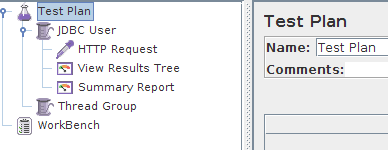
  1. Right click in Test Plan > Add > Thread Group
  2. Customize the Thread Group with your desire configurations like number of threads(User),The Ramp-Up Period, and loop count.
     - Number of threads : Number of   Users
     - The Ramp-Up Period : This property tells JMeter how long to delay between starting each user. For example, if you enter a Ramp-Up Period of 5 seconds, JMeter will finish starting all of your users by the end of the 5 seconds. So, if we have 5 users and a 5 second Ramp-Up Period, then the delay between starting users would be 1 second (5 users / 5 seconds = 1 user per second). If you set the value to 0, then JMeter will immediately start all of your users.
     - Loop Count :
    This property tells JMeter how many times to repeat your test
  3. Right click in Thread Group created before and go to > Add > Config Element > HTTP Request
    • Name -- the name of this HTTP request. The name should be descriptive; remember that it is common to have multiple HTTP Request elements in a thread group.
    • Server Name or IP -- the server name or the IP address of the machine running the application being tested.
    • Port Number -- the port number used by the application. Normally, a Web application runs on port 80.
    • Protocol -- the protocol used, either HTTP or HTTPS.
    • Method -- the request method, either GET or POST.
    • Path -- the path to the resource that will handle this request.
    • Parameters -- the list of parameters sent with this request. Use the Add and Delete buttons to add and remove parameters.
    • Send a file with a request -- simulate a file upload to the Web application.
    • Retrieve all images and Java Applets -- download embedded content.
  4. Right click in Thread Group created before and go to > Add > Listener > View Result Tree.
  5. Right click in Thread Group created before and go to > Add > Listener > Summary Report.
    Explanations:

    Label: Recorded HTTP requests.

    Samples: Samples denote to the number of http request ran for given thread.

    Average:  Average is the average response time for that particular http request. This response time is in millisecond.

    Min: Min denotes to the minimum response time taken by the http request.

    Max: Max denotes to the maximum response time taken by the http request.

    Std.Deviation: This shows how many exceptional cases were found which were deviating from the average value of the receiving time.   The lesser this value more consistent the time pattern is assumed.

    Error %: This denotes the error percentage in samples during run. This error can be of 404(file not found), or may be exception or any kind of error during test run will be shown in Error %. In the above image the error % is zero, because all the requests ran successfully.
Share:

Saturday, July 20, 2019

Install Jmeter

Apache JMeter is a 100% pure Java desktop application designed to load test client/server software (such as a web application ). It may be used to test performance both on static and dynamic resources such as static files, Java Servlets, CGI scripts, Java objects, databases , FTP servers , and more. JMeter can be used to simulate a heavy load on a server, network or object to test its strength or to analyze overall performance under different load types.

Jmeter can do stress test to client/server application such as simultaneously massive user login and process. Jmeter works in protocol level and using Java desktop applications.

 Start Jmeter Installation :
  • Go to terminal and check your Java version by typing "java -version".
    It will give result something like this depending on your Java version.
        java version "1.7.0_60"
       Java(TM) SE Runtime Environment (build 1.7.0_60-b19)
       Java HotSpot(TM) 64-Bit Server VM (build 24.60-b09, mixed mode)
    If nothing displays, please re-Install Java SE runtime environment
  • Download Jmeter from here, and unpack it.
  • Launch Jmeter.
      -
    If you are using Window, just run the file /bin/jmeter.bat to start JMeter in GUI mode as shown below
Share:

Monday, June 18, 2018

Jzebra setting on Ubuntu

jZebra is a Java applet which allows you to print barcodes, receipts, and more from a Web page to your device printer. It sends raw print commands and basic HTML and PDFs to your raw, PostScript, or LaserJet printer. It has been tested with Firefox, Safari, Internet Explorer, Chrome, and Opera. It supports parallel, serial, USB, and network printers.

To start installing jZebra, you need to install JDK and JRE on your system. Check your JDK by type "java -version" on your terminal and it must show something like this:

     java version "1.7.0_60"
     Java(TM) SE Runtime Environment (build 1.7.0_60-b19)
     Java HotSpot(TM) 64-Bit Server VM (build 24.60-b09, mixed mode)

In your browser type 'about:plugins'. If your JDK and JRE installation is correct, Your browser will show something like this (On Firefox):


If everything is ready, we will start jzebra instalation.
  1. Download the source in here Jzebra.
  2. Extract The File. There's a bunch of file, but we will using "sample.html" and  "qz-print.jar". Make sure "sample.html" and "qz-print.jar" resides in the same folder/location.  You can see this working example with jZebra Printer Device. Download
  3. Set Your Device Printer, Go to system settings > Printing.
  4. Add Printer (or New) and select your printer device.
  5. Select printer make "Generic" Click "Forward" 
  6. Click mode "Raw", Drivers "Generic Raw Queue en". Click "Forward'
  7. Fill Name and Apply
  8. For Configuration Margin etc in EPL2. You can download the manual PDF in here.
  9. I have used 2 type of Barcode Text and Barcode Code, below is general configurations:
  • Text
         Format : Ap1,p2,p3,p4,p5,p6,p7,”DATA”
         A = text

         p1 : Horizontal Start Position (X in dots)
         p2 : Vertical Start Position (X in dots)
         p3 : Rotate (0 = normal, 1 = 90 degrees, 2 = 180 degrees, 3 = 270 degrees)
         p4 : Font Type (1 until 5 = Fixed Pitch, 8 and 9 = Asian Language)
         p5 : Horizontal Multiplier (Accepted Value : 1-6,8)
         p6 : Vertical multiplier(Accepted Value : 1-9)
         p7 : Reverse Image (N = Normal, R = reverse)
        Data : backslash (\) characters designates the following character is a literal and will encode into data field. For Example: code= \"Test\", Printed = "Test"

        Working Example = A50,0,0,1,1,1,N,"Example 1", A50,300,0,3,2,2,R,"Example 6"↵

  • Barcode 
         1 : Horizontal Start Position (X in dots)
         2 : Vertical Start Position (X in dots)
         3 : Rotate(0 = normal, 1 = 90 degrees, 2 = 180 degrees, 3 = 270 degrees)
         4 : Barcode Type Selection (See Image Below)

         5 : Narrow Bar (See Image in Barcode Type)
         6 : Wide Bar (See Image in Barcode Type)
         7 : Barcode Height(X in dots)
         8 : Print Human Readable (B = yes, N = No)
         9 : Data:backslash (\) characters designates the following character is a literal and will encode into  data field. For Example: code= \"Test\", Printed = "Test"

        Working Example : 
  • B10,10,0,PL,5,5,5,N,"12-34567-890123".
  • B10,10,0,3,3,7,200,B,"998152-001"


Share:

Wednesday, July 23, 2014

Record Scenario With Jmeter

Many of Us has difficulties to Record Scenario with Jmeter. Most problems appears in configurations and browser connection. I will try to explain step by step to setup Jmeter for recording scenario.


  1.  Right Click in Test Plan > Add > Thread Groups.
  2.  Right Click in Thread Groups > Add > HTTP Request Defaults. And filled your Server name or IP to be recorded by Jmeter.

  3. Right Click in Workbench > Non Test Elements > HTTP Proxy Servers. And fill available port, I used 8080.

  4. Drag HTTP Proxy Servers to below HTTP Request Defaults. Use "Insert Before" options. It should become like this:

  5. Right Click in Thread Groups > Logic Controller > Recording Controller.
  6. Right Click in Thread Groups > Listener > View Result Tree
  7. Right Click in Thread Groups > Listener > View Result in Table
  8. Go to File > Save As Test Plan. Save it.
  9. Open your FireFox browser. Go to Edit > Preferences > Advanced > Network > Settings

  10. Clik OK. And Open Jmeter.
  11. Go to HTTP Proxy Servers and click Start.
  12. Go to Your Browser, Type URL, and do the scenario.
  13. In Recording Controller it will appear some result, Expand it for further details.


            (Example)
  14. To watch Generation Time and more advanced recording, In your Jmeter go to Run start and open View Result Tree, it will collected all data in previous scenarios.
Share: